 Rotion App
How to make a 3D logo from a PNG or SVG, free and online
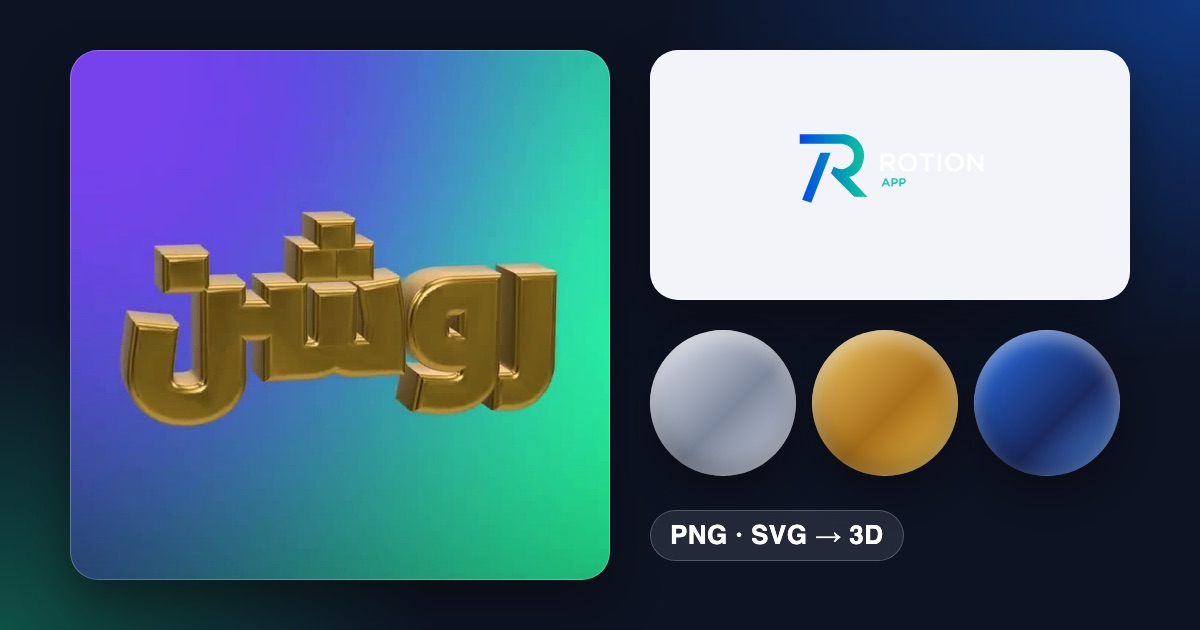
Rotion Logo makes a 3D logo from a flat PNG or SVG in your browser. You choose the material and the lighting, and export a looping video or a PNG.
Make a 3D logo in five steps
- Open Rotion Logo.
- Upload your logo as an SVG or PNG. A PNG is traced into a vector shape first.
- Choose a material: clear or frosted glass, crystal, tinted glass, holographic, chrome, gold, glossy plastic, inflatable, fur or grass.
- Set the lighting (studio, softbox, sunset or neon) and how strong it is.
- Choose a motion and a backdrop, then export a loop in 1:1, 16:9, 9:16 or 4:5.
Which material suits which logo?
- Chrome and gold: bold, simple logos for intros and a premium look.
- Glass: best over a colourful backdrop, because glass shows what is behind it.
- Plastic and inflatable: playful brands and social posts.
- Fur and grass: eye-catching, best for short loops.
Tips for a clean 3D result
- Use an SVG when you have one: the edges stay sharp.
- Simple, bold shapes read best in 3D. Very thin lines and tiny details get lost.
- Pick a backdrop that contrasts with the material: gold on dark, glass on colour.
Export and plans
Export a seamless looping MP4 or WebM video, or a PNG image. Free exports go up to 720p with a small Rotion credit. Pro ($8 a month or $79 a year) goes up to 4K, with transparent PNG backgrounds and no credit.