 Rotion App
How do I make a product reel with Sale Spotlight?
Start with a clear product photo and use Sale Spotlight to present the offer. Check the crop, price and timing on a phone-sized preview before exporting your reel.
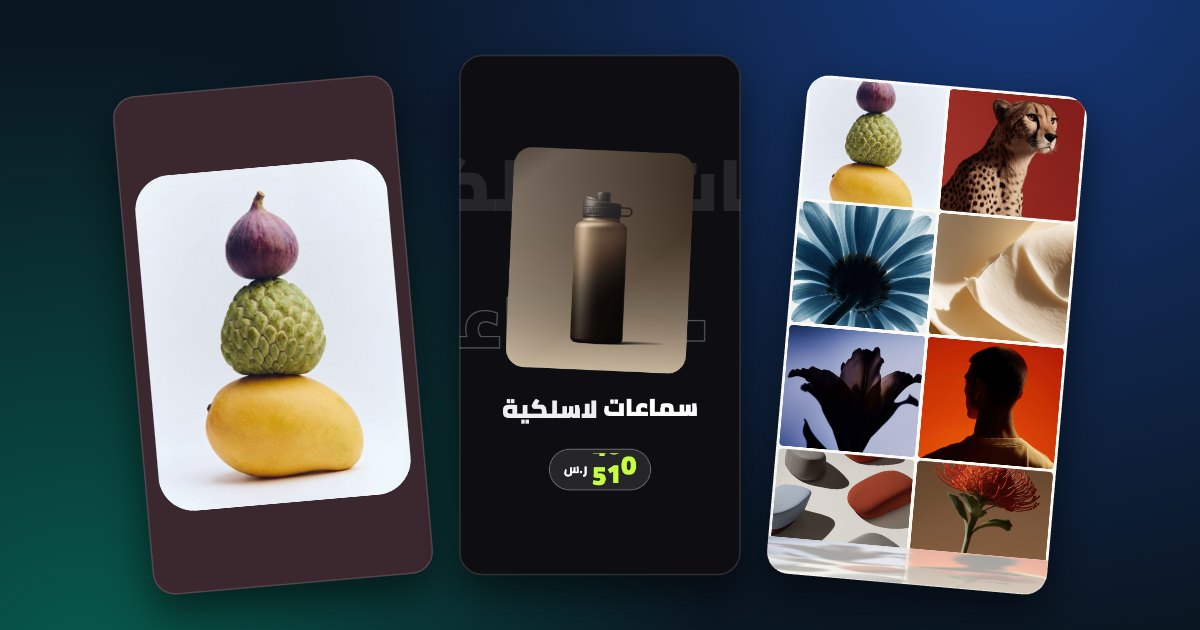
Make your first version
- Open Sale Spotlight and select 9:16 for a vertical reel.
- Replace the sample media. Choose a first image that identifies the product even with the sound off.
- Edit the offer text, watch a complete loop and check that both the price and product fit before exporting MP4.
How to read the result
Watch for three things in the preview: does the product appear alone in the first second, does the price stay readable once the text motion ends, and does the text colour agree with the product? Note what you change in each version: comparing two versions that differ by one thing teaches more than changing five things together.
Mistakes that cost sales
- Showing three products at once, so the viewer cannot tell what the offer is for.
- Setting the price in small text near the frame edge, where the phone interface covers it.
- Choosing a photo with a busy background that competes with the offer text.
- Leaving out the end date when the offer is time-limited.
Before you post
Watch the exported reel once on your phone, with the sound off, at arm’s length. If you can read the product, the offer and the price in the first two seconds, the reel is ready.