 Rotion App
How to get a 3D logo with a transparent background (PNG)
Rotion Logo can export your 3D logo as a PNG on a transparent background, so you can place it on any design, slide or video editor. Transparent PNG backgrounds are part of Pro.
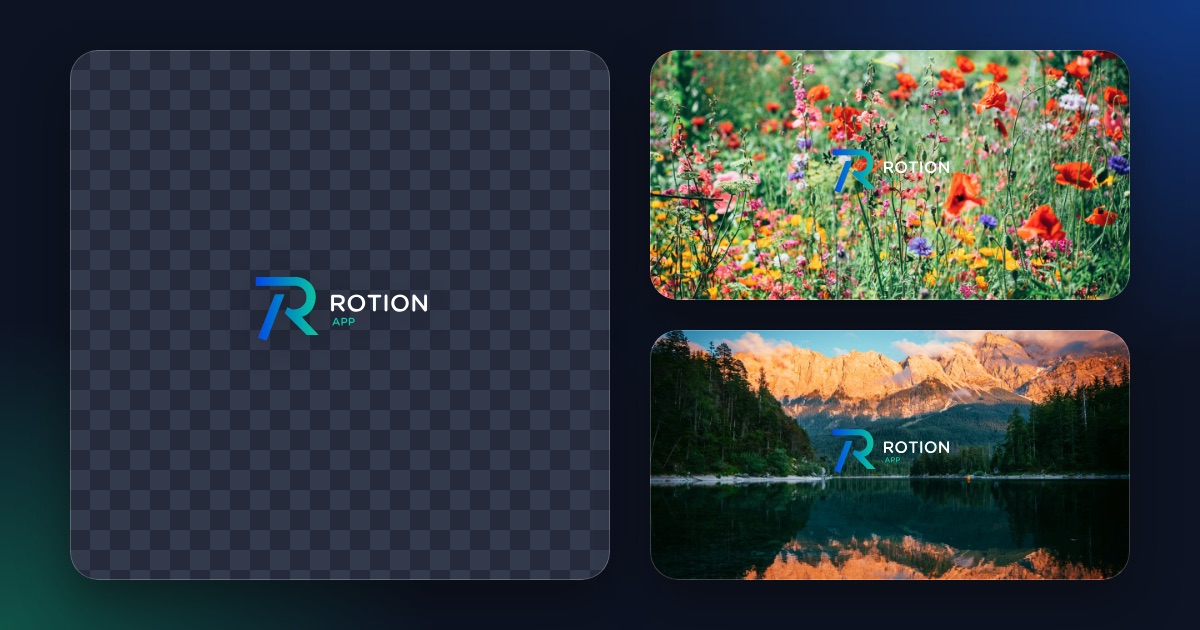
Export a transparent PNG
- Open Rotion Logo and upload your logo as an SVG or PNG.
- Choose a material and set the light.
- Set the backdrop to transparent.
- Export a PNG image (Pro).
Which materials look right on transparent?
- Chrome, gold and plastic export with their full look.
- Glass keeps its reflections and edges but looks lighter, because glass shows what is behind it.
When a video is the better choice
A PNG is a still image. For motion, export a looping MP4 or WebM with a backdrop you choose, or put your own image or video behind the logo.
Free and Pro
Free exports are images and videos up to 720p with a small Rotion credit. Transparent PNG backgrounds, exports up to 4K and no credit come with Pro ($8 a month or $79 a year).